 CrazyGamesX.com
Puppet Master Guide: Ragdoll Clicker Controls, Weapons and Useful Unlocks
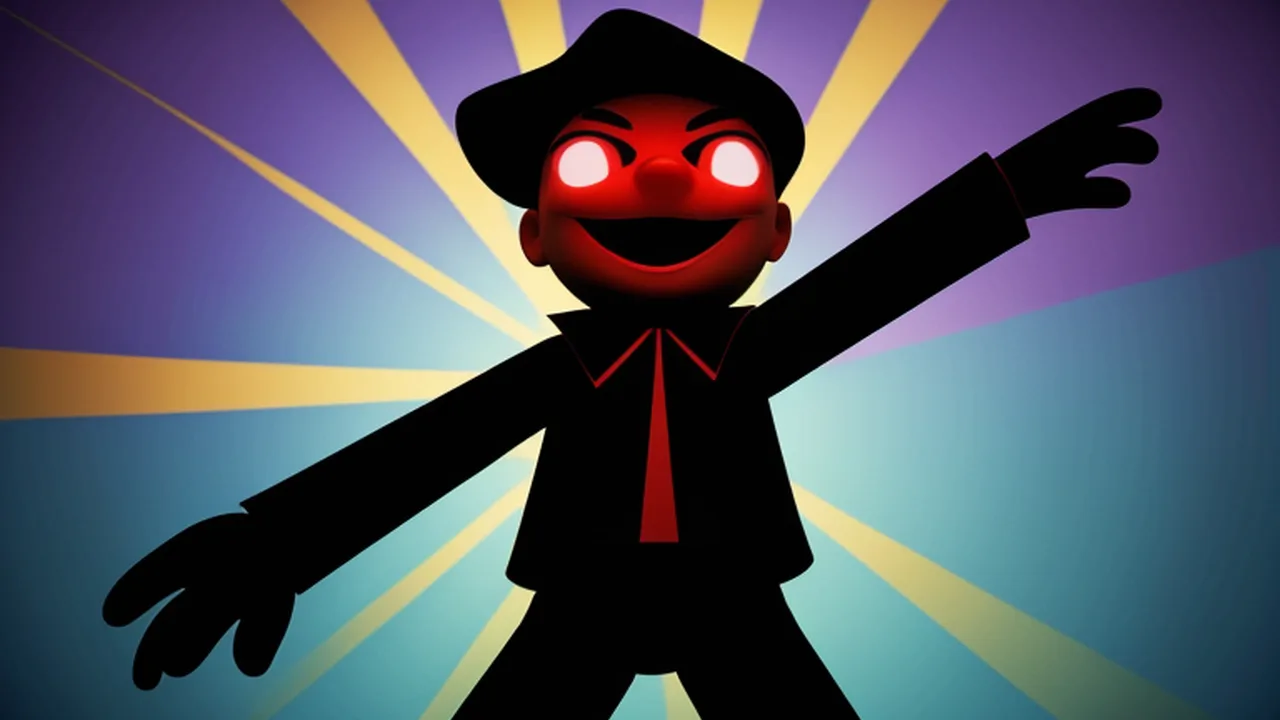
Puppet Master is a 3D ragdoll clicker about causing damage, unlocking weapons and experimenting with their effects on a toy-like puppet. The mouse is your main control. A session revolves around the target in front of you and the equipment available, rather than guiding a character through an obstacle course.
Open Puppet Master to reach the version covered here. The opening screen shows the puppet, a coin balance, appearance choices and a Begin button. The distributor identifies knives, machine guns and rockets among the weapon options. This guide explains how to read that interface, approach unlocks and make a short session more purposeful without inventing a level solution or a guaranteed reward rate.
What you are actually trying to achieve
The central loop is to damage the ragdoll and unlock further weapons. Progress therefore means understanding the current interaction and discovering another available tool. You do not need to search the scene for a finish line, master a keyboard jump or balance the puppet on a narrow platform. Those would be objectives from a different kind of physics game.
Choose a small goal before beginning. You might want to learn how the selected weapon responds, understand an unlock requirement or compare a newly available option with the one you already know. A clear goal lets you recognise useful progress even when the session is brief. Clicking with no particular aim can obscure what has changed between one part of the session and the next.
Read the opening screen before using Begin
The opening menu places the puppet in the middle, with arrows for browsing appearance choices, a displayed price and a Buy button. The coin balance is shown separately. Check those labels before selecting anything: browsing an appearance and purchasing it are different actions, and a visible price tells you whether the balance currently shown is sufficient.
Choose Begin when you want to enter the main activity. A costume displayed on the menu is an appearance choice; do not assume that its price indicates a stronger weapon or a larger damage reward. If your immediate aim concerns weapon progression, keep that aim separate from a decision about how the puppet looks. The interface gives each choice its own place.
Learn one mouse interaction at a time
The supplied controls specify the mouse. Start by locating the target and the selection controls shown by the loaded game. Make one deliberate input, then watch the response. This establishes a useful reference: you know where the pointer was, which option was selected and what happened after the action.
When trying an unfamiliar weapon, use its own prompts to learn whether the interaction differs from the previous one. Do not automatically transfer a hold-to-fire action, a keyboard shortcut or a reload command from another game. A simple clicker can still use several kinds of on-screen buttons, and a missed interface input does not prove that the selected tool is ineffective.
Follow the ragdoll instead of clicking its old position
A ragdoll reacts physically to what happens in the scene. Pay attention to the target's current position before making the next input. If you continue clicking the place where it was a moment ago, it becomes harder to tell whether an uncertain result concerns your aim, the selected action or the target's movement.
Use a rhythm that leaves you enough time to read the response. Fast input can be enjoyable, but it is less useful for learning if several effects overlap before you understand the first one. Let the puppet's visible movement inform the next action. This advice concerns reading feedback; it is not a claim that clicking slowly produces a hidden bonus.
Understand an unlock before working toward it
The game opens additional weapons through damage to the ragdoll. Inspect the requirement and state shown for the option that interests you. Work with the information available in the current session rather than following an invented list of prices or assuming that every tool becomes available after the same number of inputs.
After something unlocks, take time to understand it before immediately pursuing another item. A new option is useful because it changes what you can try. If you skip straight past its interaction, the collection can grow while your understanding of the game remains unchanged. One clearly understood unlock gives the next session a more interesting starting point than several unexplained selections.
Compare knives, gunfire and rockets as different options
The distributor describes throwing a knife, firing a machine gun and launching a rocket. These provide different weapon themes to explore. Use the particular tool you have actually unlocked and watch the result it produces in this build. The name of a weapon alone does not establish its damage value, input rhythm or exact place in an optimal progression route.
For a useful comparison, keep your attention on one feature. You might compare how easy an action is to aim or how clearly you can follow its effect on the puppet. Avoid changing the selected tool several times before watching any result. You will learn more from a short, readable comparison than from a busy sequence where you cannot remember which selection produced which effect.
Separate the coin balance from your current objective
A visible balance makes purchases easier to plan, but it should not turn every menu visit into an automatic purchase. Read the item and its price, decide whether you want that particular choice, and then compare it with the amount currently displayed. An appearance you like can be a perfectly sensible choice when appearance is what you want to change.
If your aim is to investigate weapons, return your attention to the unlock information relevant to that aim. Do not assume that every button labelled Buy serves the same purpose. This distinction helps prevent a cosmetic decision from being mistaken for a combat improvement, and keeps the next action connected to the session you intended to have.
Check the selected tool before diagnosing a problem
If an input seems to have done nothing, first look at the interface. Is the intended option selected? Is the pointer over the game area? Is a menu or introductory screen still asking for another action? Resolve those simple questions before deciding that an unlock failed or that the rules have changed.
Then make a single clear input and observe the feedback. Repeatedly pressing unrelated keys or switching tools in frustration introduces more uncertainty. The verified control description does not establish an R reset shortcut, so use an actual on-screen command when you need a function. Distinguishing an interface misunderstanding from a progression question can save an unnecessary restart.
Keep experiments easy to interpret
Suppose you want to compare a familiar tool with one you have just unlocked. Begin by watching a few clear actions with the familiar selection. Change the selection deliberately, then inspect the new response. Keep the comparison focused on what you wanted to learn, such as the aiming action or the readability of the effect.
This is an example of a useful method, not a fixed challenge built into the game. You do not need to record a spreadsheet or prove that one option is universally best. A short note in your own mind about what felt clearer can be enough to decide which tool you would like to use next.
Choose a comfortable pace for a clicker session
Repeated mouse input should fit a relaxed hand position. Use a pace you can maintain comfortably and take a break if the movement becomes tiring. A growing collection does not require treating every moment as a maximum-speed clicking test. Leave time to browse a selection or inspect an unlock without feeling that observation wastes the session.
For a short visit, learning one tool or understanding one requirement is a reasonable stopping point. Before leaving, note which option you were using and what you wanted to try next. On returning, use the state the player actually shows; do not assume a particular offline reward, account system or save behaviour that this version has not explained.
Recognise the loading screen and the game menu
The player may show a loading panel or introductory advertisement before its menu. Allow loading to finish and use a Skip button when the player offers one, then look for the Puppet Master title and Begin. Clicking inside an advertisement does not select a weapon or start the session. If that screen still obscures the interface, wait for it to close rather than repeatedly clicking where a game button was previously visible. Read the current screen again before choosing the next action.
Pick another format when you want a different kind of choice
Gun Maker offers a separate workshop-and-range simulator. Its focus is assembling virtual components and testing a configuration on targets. That can suit a session where you want to compare a build, while Puppet Master centres on damaging a ragdoll and unlocking tools. Learn the other game's controls in its own player.
The broader Clicker collection includes accumulation and other simple-input games. A shared clicking action does not guarantee identical rewards or objectives. For Puppet Master, the practical starting point is the loaded interface: understand the current selection, watch the ragdoll's response and make the next unlock or appearance choice for a clear reason.